![SurePassID_CMYK_600.png]](https://support.surepassid.com/hs-fs/hubfs/SurePassID_CMYK_600.png?height=40&name=SurePassID_CMYK_600.png)
In our SPAS, you can go to account, customize e-mail settings, then edit the 3 e-mail types' templates to be used to send a user their account details, an OTP for validation, or instructions for setting up their tokens.
Here is the template screen in context:
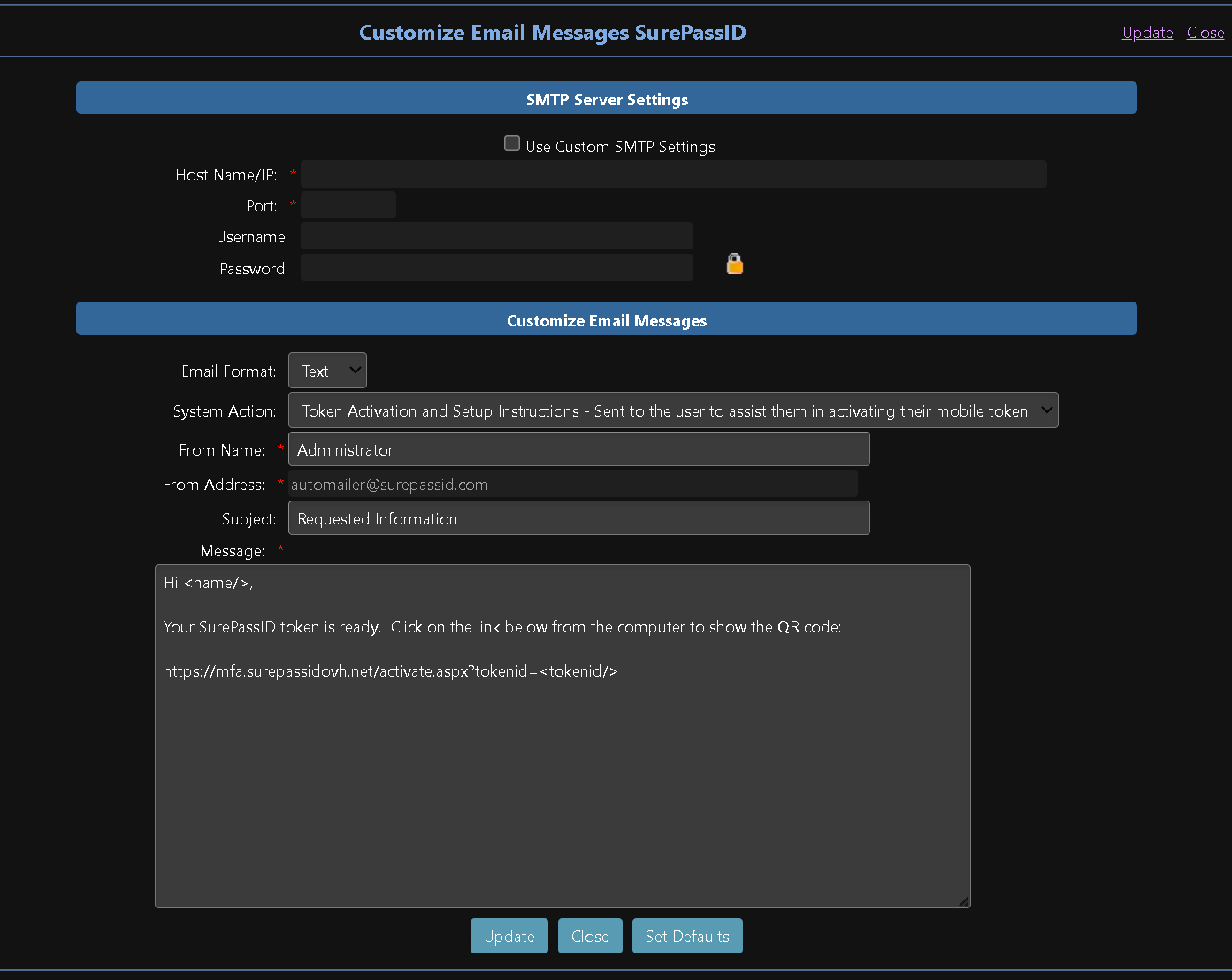
For activating a new soft tokens, you can use the template below, substituting your specific URL for your SPAS (mfa.surepassid.com in this example).
Hi <name/>,
Your SurePassID token is ready. Click on the link below from a computer to show the QR code:
https://mfa.surepassid.com/activate.aspx?tokenid=<tokenid/>
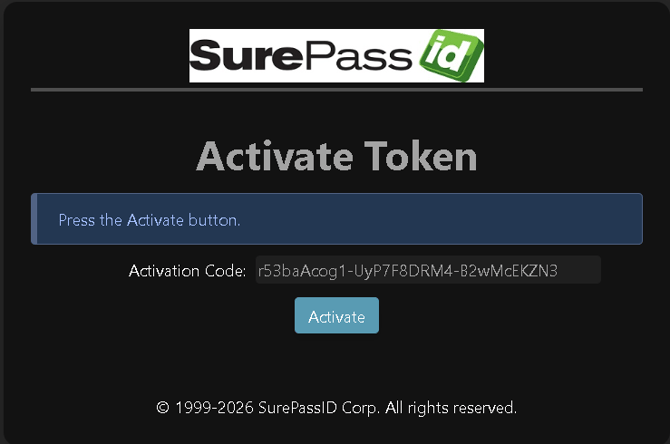
From a computer or device other than the phone where we will be adding the token, click on the activate link and follow the prompts. The goal is to get the QR code so you can scan it from the mobile app on the phone to add the token to the phone.
The user will see something like this:
Then: